

Want to easily connect your Brother printer to Wi-Fi? You'll need a WPS PIN code—an eight-digit code used to securely connect your printer and router. This simple number helps your devices communicate securely on your home or office network. In this guide, you'll learn how to find WPS PIN for Brother printer using several methods.
Table of Contents
Quick Overview
Before delving deeper, here are three quick ways to find your WPS PIN:
- Printer Control Panel: Use the printer's LCD menu to generate or view your WPS PIN.
- Router Settings Page: Log in to your router's web management interface to find or generate your WPS PIN.
- Brother Software or Application: Use the Brother Setup Wizard or mobile application to automatically obtain your WPS PIN.
If one method doesn't work for your printer model, try the other methods below. Every Brother printer supports at least one of these methods.
What Is a WPS PIN?
WPS (Wi-Fi Protected Setup) is a quick and secure way to connect wireless devices without needing to enter lengthy passwords. The WPS PIN is a unique eight-digit code used to verify the connection between your Brother printer and your Wi-Fi router.
This PIN ensures that only authorized devices can join your network. This feature is especially useful if your router doesn't have a physical WPS button. While WPS makes setup simple, for added security, remember to turn it off afterwards.
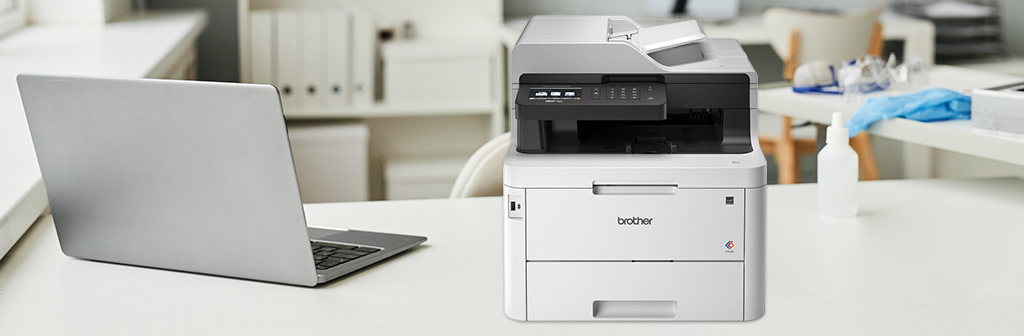

How to Find WPS PIN for Brother Printer?
1. Using a Brother Printer with a Display Screen
If your Brother printer has an LCD or touchscreen, finding the WPS PIN is simple. Common examples includes Brother MFC-J1010DW, MFC-L3720CDW, MFC-J1360DW, MFC-J650DW, MFC-L6800DW, MFC-J4355DW, etc.
- Turn on the printer and then open the menu or settings.
- Select "Network" or "Wi-Fi Settings".
- Select "WPS" or "WLAN Setup Wizard".
- Select "PIN Code Method" or "WPS PIN".
- An eight-digit PIN code will be displayed on the screen; write it down.
- Enter this PIN code in your router's WPS settings to complete the connection.
If you do not see the WPS option, please consult your user manual. Some Brother printers use different menu names, such as "Wireless Setup Wizard" or "Wi-Fi Direct".
2. Using a Router
You can also find or create the WPS PIN through your Wi-Fi router’s admin panel:
- Connect your computer to the router.
- Open your browser and enter your router's IP address (usually 192.168.1.1).
- Log in using your administrator username and password.
- Go to "Wireless Settings". Enter "WPS Configuration" and find the section labeled "WPS PIN" or "Generate PIN".
- Copy or generate a new PIN code and then use it on your Brother printer.
If your router lists connected printers, it may also display the printer's registered WPS PIN code.
3. Using Brother Software or a Mobile Application
Brother offers software tools that simplify WPS setup on both computers and smartphones.
Using the Brother Setup Wizard (PC):
Download your Brother printer driver from the official Brother support website. Launch the installer and select "Wireless Network Connection".
When prompted, select "WPS (PIN Code)". The wizard will display the WPS PIN code or ask you to enter the PIN code on your router. Follow the on-screen instructions until setup is complete.
Using the Brother iPrint&Scan Mobile App:
Download Brother iPrint&Scan from the App Store or Google Play. Open the app and tap "Add Printer".
Select "Wi-Fi Setup", then select "WPS PIN Method". The app will display or ask you to enter the PIN code and guide you through the connection process. This is the easiest method if you are setting up the printer without a computer.
4. Checking the Printer Label
Many Brother printers have important connectivity information printed directly on the device. Look for a label labeled "WPS PIN," "SSID," or "Network Key." You can find this information in:
- The back or underside of the printer.
- The side label near the serial number.
- The quick setup guide or included paperwork.
If you see a printed WPS PIN, you can use it immediately for wireless setup. If not, follow the instructions above to generate a PIN from the printer menu or your router.
5. Printing the Network Configuration Page
If the above methods fail, please print the network configuration page. This page typically lists the printer's network settings, including the SSID, IP address, and sometimes the WPS PIN code.
Turn on your Brother printer, press "Menu" → "Print Report" → "Network Configuration". Press "OK" or "Start" to print. View the WPS details or connection instructions on the page.
If the WPS PIN code is not displayed, please enable WPS settings from the printer first, and then reprint the report.
Frequently Asked Questions About WPS PIN for Brother Printer
1. Which Is Safer, WPS PIN or WPS Button?
The WPS button is generally more secure because it doesn't require exposing a PIN code to connect to the device. However, both methods are secure when used correctly. After pairing your Brother printer, disable the WPS function to prevent unauthorized access. We recommend always using WPA2 or WPA3 encryption to protect your Wi-Fi connection.
2. What If My Printer Doesn’t Have a Display Screen?
You can connect via the Brother setup wizard on your computer, or you can use a router to connect your printer wirelessly.
3. Does the WPS PIN Expire or Reset Automatically?
Yes, most WPS PIN codes are temporary and expire after a few minutes. If the connection fails, simply generate a new PIN code.
Some routers and printers automatically reset the PIN code for security reasons, so please complete pairing as soon as possible after generating the PIN code.
Wrap It Up
Finding your Brother printer's WPS PIN code is straightforward. You can find it on the printer screen, your router's settings page, the Brother software, a label, or the print configuration page. Following the steps outlined in this article will ensure a secure and stable wireless printing experience every time.
Keep Exploring: More Blogs to Dive Into


