

Is your HP DeskJet printer acting up? Maybe it’s showing puzzling error messages, not connecting to Wi-Fi, or just stuck in a “frozen” state. Before you consider costly repairs or a replacement, a simple reset might be the magic fix you need.
Resetting your printer is like giving it a fresh start—it clears temporary glitches, forgotten settings, and can solve many common problems. For new users, this might sound technical, but don’t worry! This guide will walk you through two safe and effective methods to reset your HP DeskJet printer, step by step. Let’s get your printer back to its best.
Table of Contents
Understanding the "Reset": Soft Reset vs. Hard Reset
First, it's helpful to know there are two main types of resets:
A Soft Reset (or Power Cycle): This is the first and safest step for most issues. It simply means turning the printer completely off and on again properly, which clears its temporary memory (RAM). Think of it as a short nap for your printer.
A Hard Reset (or Factory Reset): This is a larger step. It will restore the printer's software to its factory default settings. However, be aware that this will erase all custom settings, including saved Wi-Fi networks, default paper sizes, and any device shortcuts. Use this method if a soft reset doesn't work, or if you plan to donate or sell the printer.
How to Reset HP DeskJet Printer?
First, try a soft reset to see if the problem is resolved. If not, then try a hard reset.
Method 1: The Soft Reset (Your First Go-To Fix)
Try this whenever your printer is unresponsive, showing errors, or having connection woes.
- Print a Test Page: If your printer is partly working, print a test page from the printer's control panel or via your computer. This gives you a “before” snapshot.
- Turn Off the Printer: Press the power button to turn it off. Wait for all lights to go dark.
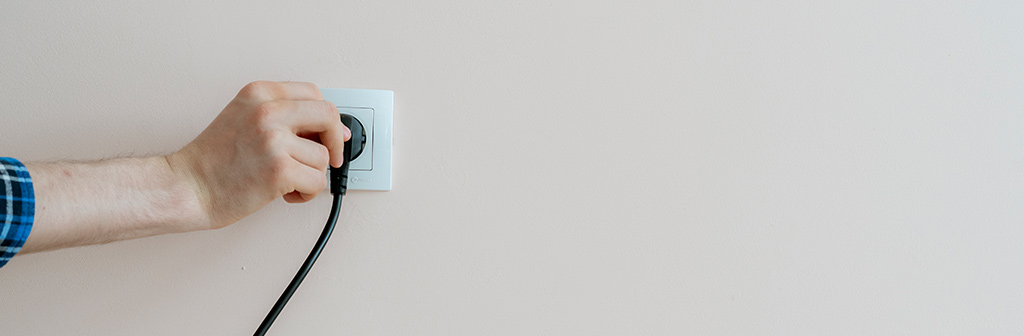
- Unplug from Power: This is the crucial step! Don’t just turn it off—pull the power cord from the electrical outlet on the wall. If your printer has a removable external power supply (a "power brick"), unplug it from both the wall and the printer.
- Wait Patiently: Leave the printer unplugged for at least 60 seconds. This waiting period allows the printer’s internal capacitors to drain, ensuring any stuck data is cleared.
- Reconnect and Power On: Plug the power cord firmly back into the wall and the printer. Press the power button to turn it on.
- Allow Time to Restart: The printer will go through its startup routine, which may take a minute or two. Listen for the print head moving to its home position—this is a good sign!
This feature can resolve issues such as minor software glitches, temporary network interruptions, and unresponsive print jobs.

Method 2: The Factory Reset (The Master Restart)
Only proceed if a Soft Reset failed, or if you are giving away or recycling the printer. A Factory Reset will permanently erase all your printer's current settings. This includes:
- Your saved Wi-Fi networks and passwords.
- Custom default settings (like paper size, type, and print quality).
- Any mobile printing setups (like HP Smart App connections).
The process differs slightly depending on your DeskJet model. Here is a clear, two-path guide to find the right method.
Step 1: Identify Your Method
Look at your printer's control panel. If it has a touchscreen or menu display, follow Step 2 below, for example, the HP DeskJet 4100 and 6000 series. If it only has buttons and indicator lights, without a real screen, such as many HP DeskJet 2600 and 2700 models, follow Step 3.
Step 2: Factory Reset Using the Control Panel Menu
For printers with a navigable screen.
- Access Settings: From the home screen, tap the "Settings" icon (often a gear) or navigate to "Setup."
- Find 'Printer Maintenance': Scroll and select "Printer Maintenance," "Tools," or "General Settings."
- Select 'Restore Defaults': Within that menu, look for and select "Restore Factory Defaults," "Reset All Settings," or "Factory Reset."
- Confirm the Action: A strong warning message will appear. Read it and select "Yes" or "OK" to confirm. There is no "undo" for this step.
- Wait for Reboot: The printer screen will go blank, and the device will restart automatically. This can take 2-3 minutes. Do not unplug it during this process.
Step 3: Factory Reset Using a Button Combination
For simpler printers with button panels.
- Printer Must Be On: Ensure the printer is powered on and idle (no lights blinking).
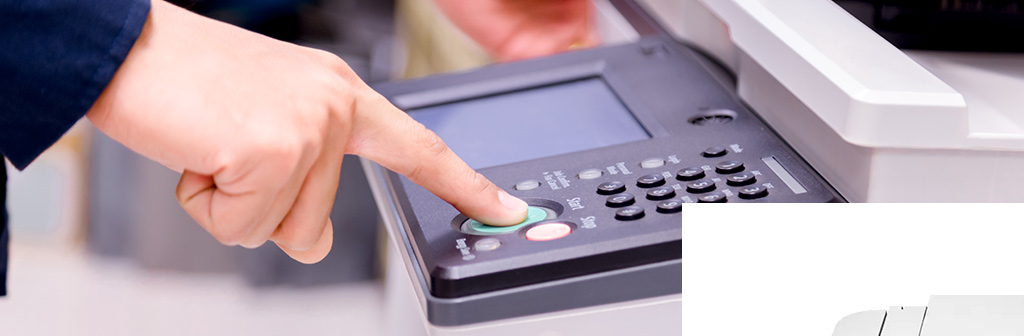
- Press and Hold: Simultaneously press and hold the "Wireless" button and the "Cancel" button (often an "X" icon). On some models, you may hold "Power" and "Cancel."
- Hold for 5-10 Seconds: Keep holding until you see all the indicator lights flash together or the power light blinks. Then, release the buttons.
- Auto-Reset: The printer will now process the reset. The lights may cycle, and it will eventually power off and back on by itself.
The video below provides detailed instructions for your HP DeskJet 2700 series printer, such as DeskJet 2700, DeskJet 2722, DeskJet 2723e, DeskJet 2725, DeskJet 2734e, DeskJet 2742e, DeskJet 2752, DeskJet 2752e, DeskJet 2755, DeskJet 2755e, and so on.
Still Unsure? Find Your Exact Model Steps:
Look on the front or back of your printer for the exact model number (e.g., "HP DeskJet 2755e"). Go to the official HP Customer Support website. Enter your model number and search for "factory reset" or "restore factory defaults." You'll get the official, model-specific guide.
What to Do After a HP DeskJet Printer Reset?
Your printer is now clean, but you’ll need to set it up again, just like when it was new.
Reconnect to Wi-Fi: You will need to go through the wireless setup wizard on the control panel to reconnect to your home network. Have your Wi-Fi network name (SSID) and password ready. See our blog How to Turn on WiFi Direct on HP Printer for more info.
Reinstall/Reconnect on Your Computer: On your Windows PC or Mac, you may need to re-add the printer. On Windows, go to "Settings" > "Bluetooth & devices" > "Printers & scanners." Click "Add device." On Mac, go to "System Preferences" > "Printers & Scanners." Click the "+" sign. Your computer should discover the reset printer on the network. Select it to add.
Print a Final Test Page: Print a test page from your computer’s printer settings or the printer’s own menu to confirm everything is working perfectly. See more in our blog How Do I Print a Test Page on HP Printer.

Frequently Asked Questions about Resetting HP DeskJet Printer
Q: Will a reset delete my printer's installed ink cartridges information?
A: No. A factory reset clears settings but does not affect the firmware that reads the ink levels. Your printer will still recognize the cartridges.
Q: I can’t access the menu because my screen is blank/frozen. How do I reset?
A: In this case, perform a hard power cycle (Method 1) but leave it unplugged for 5 full minutes. If that fails, try the button combination method mentioned above.
Q: My printer still doesn’t work after a factory reset. What now?
A: It’s possible the issue is hardware-related (like a faulty printhead or paper feed mechanism). Visit the official HP Support site for diagnostics or contact their customer service for further assistance.
Q: Should I reset my printer before selling it?
A: Absolutely, yes. A factory reset is essential to protect your privacy. It removes all saved networks and any cached data from the printer’s memory.
Conclusion
Resetting your HP DeskJet printer is a basic yet effective troubleshooting technique. As a beginner, remember that most common problems can be resolved with a simple, non-destructive power cycle. For more persistent issues, or when handing the printer over to a new user, a factory reset can provide a fresh start, but at the cost of reconfiguring the settings. We hope this clear and easy-to-understand step-by-step guide will help you confidently troubleshoot printer problems. These methods can usually restore your printer's functionality quickly, saving time and potential repair costs.
Explore More: Blogs You'll Want to Read Next


