

Printer noise, no matter what it sounds like, is annoying and sometimes even frightening. Is your printer broken? Do you need to buy a new one? In most cases, printer noise problems can be solved without replacing the machine. Different sounds indicate different problems. In this guide, we'll detail five of the most common printer noises and show you some simple steps to eliminate them.
I. First Things First: Safety and Preparation
Before you start poking around inside your printer, take these basic safety steps. They'll protect both you and your machine.
- Turn off and unplug the printer. This prevents any chance of electric shock or accidental movement while you're working.
- Let it cool down if it's been running. Some internal parts can get hot, especially in laser printers.
- Remove paper and any jammed debris. Clear the paper trays and check for any visible scraps.
- Have a flashlight and lint-free cloth ready. You'll need good light to see inside, and the right cloth to clean without leaving lint behind.
II. Common Printer Noises and What They Mean?
Not all printer noises are created equal. Here are the five most common sounds users report, what they typically mean, and which printers are most affected.
1. Grinding or Clicking Noise
You might hear a repetitive grinding or clicking sound during paper feed or while printing. This usually points to foreign objects like staples or paper scraps caught in the mechanism.
Worn or dirty feed rollers can also cause this issue. It's most common in laser printers and older inkjet models with more moving parts.
2. Squeaking or Squealing Noise
A high-pitched squeak during printing or when the carriage moves usually means dry or dirty carriage rails need lubrication. Lack of maintenance allows friction to build up on moving parts.
This noise is especially common in inkjet printers with moving printheads, such as many Canon Pixma and Epson Expression models.
3. Rattling or Vibrating Noise
A loose, shaking sound, particularly during startup or heavy printing, often comes from loose screws or panels that have vibrated free over time.
Items sitting on top of the printer can amplify vibration. An unstable surface or uneven feet may also cause the whole printer to wobble.
4. Thumping or Banging Noise
A loud thump when the printer picks up paper or during duplex printing is often paper-related. Stiff or curled paper that doesn't feed smoothly can create this sound. Pickup roller issues where rollers slip then catch are another common cause. It's most common in printers with automatic duplexing.
5. Humming or Whirring That Won't Stop
Continuous motor noise even when the printer isn't printing may mean the printer is stuck in an endless cleaning cycle.
A firmware glitch might be telling motors to run constantly. The cooling fan may also run non-stop due to dust buildup. This can happen after long print jobs.
III. How to Troubleshoot Printer Noise Problems?
Now that you know what you're listening for, here's how to fix it. Follow these steps in order. Most noise issues are solved by step 2 or 3.
Step 1: Check for Foreign Objects
Open all access panels, remove paper trays, and shine a flashlight inside. Look for anything that shouldn't be there. Staples, paper clips, torn paper scraps, rubber bands, or even small toys if kids have access to the printer can all cause problems.
Objects caught in gears or rollers are a leading cause of grinding and clicking. If you find anything, carefully remove it with tweezers. Avoid pushing debris further inside.
Step 2: Inspect and Clean the Rollers
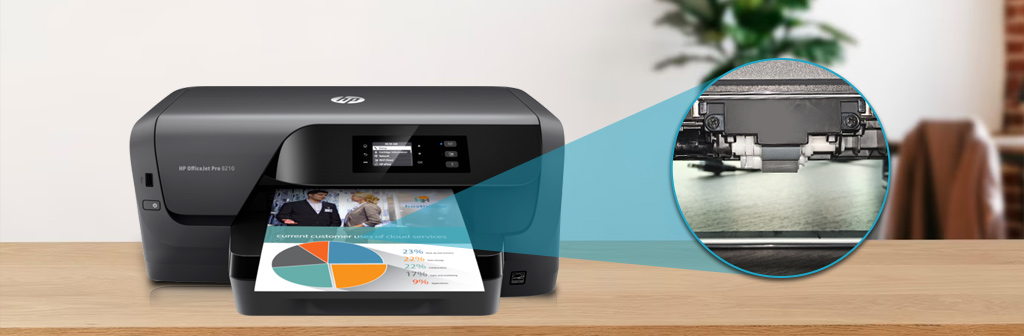
Dirty or worn rollers are a common source of noise, especially thumping and grinding. The pickup rollers are usually located inside the paper tray or behind a front panel.
First, locate the rollers. They are usually made of rubber and may have a textured surface. The blog How to Fix a Paper Jam in HP Printer provides a relevant description.
Damp a lint-free cloth with distilled water. Never use tap water, as it leaves mineral residue. Gently wipe the rollers, rotating them to clean the entire surface. Before testing, ensure the rollers are completely dry.
Cleaning solves about 80% of roller-related noise issues. If rollers are worn smooth, meaning they look shiny instead of textured, they may need replacement. But cleaning is always the first step.
Step 3: Lubricate Moving Parts
If you're hearing squeaking, dry moving parts are the likely culprit. But caution is critical here. Using the wrong lubricant can destroy your printer.
Only use lubricant specifically designed for printers. White lithium grease or silicone-based lubricants are safe options. Never use WD-40 or household oils. They attract dust and can damage plastic gears.
On inkjet printers, apply a tiny drop to the metal rod that the printhead slides on. This rod is called the carriage rail. On laser printers, lubricate gear assemblies only if you can access them safely. Move the carriage manually to distribute the lubricant, then wipe away any excess with a lint-free cloth.
Less is more. A single drop is usually enough. Excess lubricant can drip onto other components and cause problems.
Step 4: Tighten Loose Screws and Panels
Rattling and vibrating noises often come from simple loose parts.
Gently press on different panels while the printer runs to isolate where the rattle is coming from. Check for visible screws on the outside and bottom of the printer. Tighten any that are loose. Inspect the printer feet.
If one is missing or worn, the printer may wobble and amplify noise. If panels feel loose but have no screws, they may have plastic clips that can be pressed back into place.
Step 5: Re-download Firmware and Drivers
Sometimes the noise isn't a mechanical problem, but a digital one. Firmware malfunctions can cause the motor to run erratically or the cleaning cycle to loop indefinitely.
Visit your printer manufacturer's website. This could be HP, Canon, Epson, Brother, or another brand. Find the support or download page. Enter your printer's exact model number. Download and install your printer's firmware and drivers. This simple step has helped countless users resolve strange noise problems.
Step 6: Check Printer Placement
Sometimes the problem isn't inside the printer. It's where the printer sits.
Make sure your printer is on a stable, level surface. Check that nothing is touching the printer that could amplify vibration. This includes walls or other equipment. Consider placing a rubber mat or anti-vibration pad underneath the printer. Ensure the printer feet are all making contact with the surface.
A simple rubber mat can reduce perceived noise by 30 to 50 percent by dampening vibration transfer to your desk or table.
IV. When the Noise Is Coming From the Cartridge or Toner Area?
Sometimes the noise isn't the printer itself. It's the consumables. If you've checked everything else and the sound seems to come from where the cartridges are, here's what to listen for.
If you hear clicking, the cartridge may not be seated properly. Remove it and reinstall firmly until you hear a distinct click. This is especially common with HP 67/67XL and Canon 280/281 series cartridges.
If you hear grinding, toner cartridge gears may be misaligned. Try removing and reinstalling. You can also swap cartridges to isolate if one specific cartridge is causing the noise. If the noise follows a particular cartridge, that cartridge may be defective.
If you hear rattling, there may be loose internal parts in a defective cartridge. If reseating doesn't help and the noise only happens with one specific cartridge, it likely needs replacement.
At YB Toner, every compatible cartridge is tested for proper fit and smooth operation before shipping. If you experience unusual noise with one of our cartridges, contact us. We'll make it right under our 30-day return policy and 2-year warranty.
V. When Should I Get a New Printer?
Not every problem is worth fixing. Here are signs that repair may not be the best option.
Consider the age of your printer. The average printer lifespan is about 3 to 5 years for consumer models and 5 to 7 years for business models. If your printer is more than 5 to 7 years old, replacement might make more sense.
Compare repair costs to replacement costs. If the repair cost exceeds half the price of a new printer, it's probably not worth it. A $50 repair on a $150 printer might be worth it. A $150 repair on a $200 printer probably isn't.
Look at the overall condition. If multiple components are failing at once, you have noise issues plus paper feed problems plus print quality issues, it's likely time for a new printer.
Check parts availability. Manufacturers only stock parts for so long. If parts for your model are no longer available, repair isn't an option.
As a rule of thumb: if your printer is more than five years old and needs a repair costing over $100, it's usually more economical to replace it.
VI. Conclusion
While printer noise can be annoying, it rarely means the printer is about to break down. From the screeching of the rollers to the creaking of the guide rails, most noises have simple solutions that you can do at home with just a few basic tools and a little patience. In most cases, you'll have a quiet, working printer within 30 minutes.
Discover More: Blogs You Might Love


